Build your class library
Classes live at the club level, not the show level — you define "Classic American" or "Modern Muscle" once and reuse it on every show you run afterward. Start here before creating anything on a specific show.
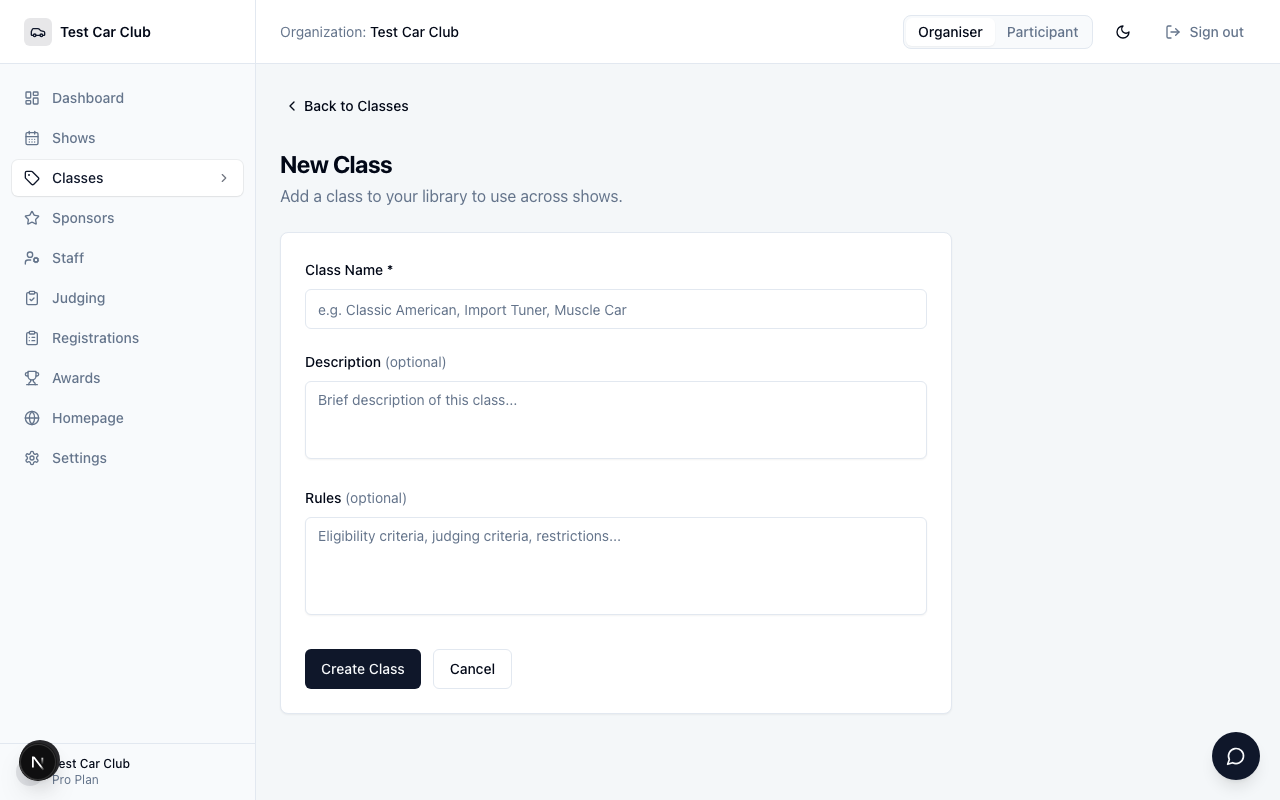
Click Classes in the sidebar, then + New Class. Fill in Class Name (required — e.g. "Classic American", "Import Tuner"), and optionally a Description and Rules for eligibility or judging criteria. Click Create Class.
Add classes to the show
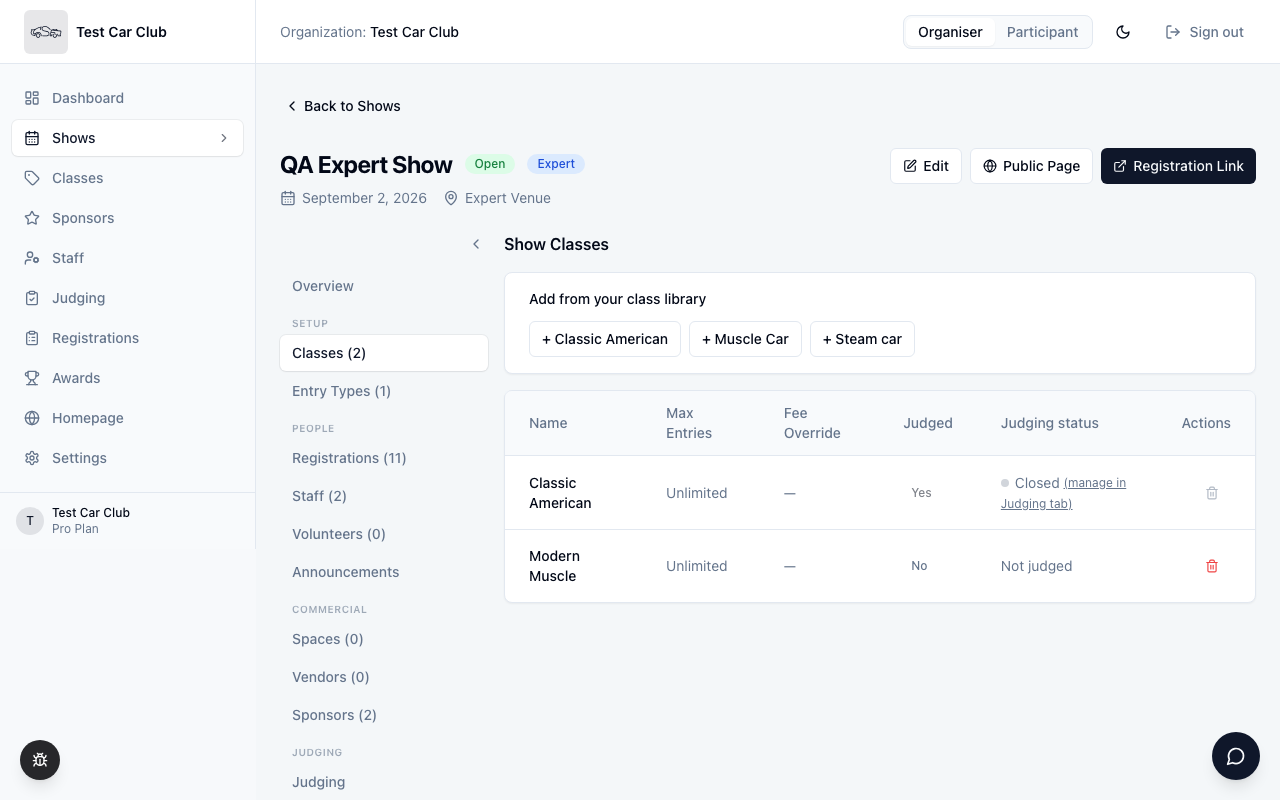
A class in your library isn't judged anywhere until it's attached to a specific show. Open the show, then its Classes tab. Under Add from your class library, click each class button you want on this show. Optionally set a Max Entries or Fee Override per class from the table that appears.
Once judging is enabled, this tab shows a read-only Judging status column, so you can see each class's Open or Closed status at a glance — every class starts Closed. To actually open or close judging, head to the show's Judging tab instead (covered in Step 5) — or click the (manage in Judging tab) link next to the status here.
Next to it is a Judged column, set to Yes for every class. If a class will never be scored — a display-only or non-competitive class — click Yes to switch it to No. Its status then reads Not judged, and it drops out of everything judging-related: the Judging tab, the judge class picker, judges' scorecards, Judging Progress and Judge Results. That's different from Closed, which just means "not open yet." You can't switch a class to No once any score exists for it, so decide before judging starts.
Set up judges
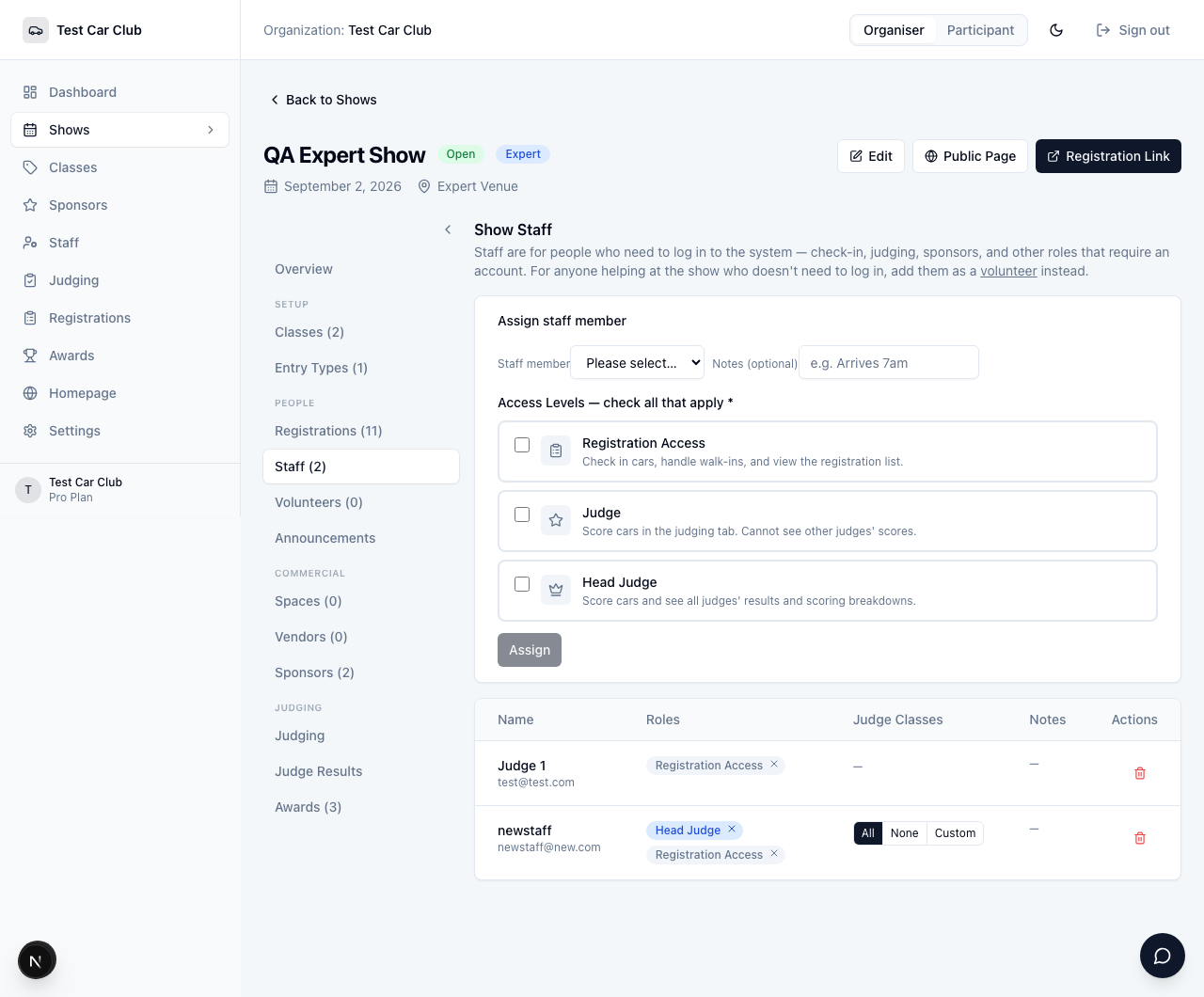
Open the show's Staff tab. Pick the person from Staff member, then check whichever of the three Access Levels boxes apply — Judge and/or Head Judge for judging duty, plus Registration Access too if they're also covering the gate. Add an optional shared note, then click Assign. A person can hold more than one access level at once and shows up as a single row either way.
Once assigned, use the Judge Classes column on their row to scope them: All lets them judge the whole show, None removes every class, and Custom opens a checklist to pick specific classes. Changes there save immediately — there's no separate Save step.
Judge vs. Head Judge
- Judge — scores cars in their assigned classes. Can't see other judges' scores or breakdowns, so one judge's number never influences another's mid-show.
- Head Judge — scores cars the same way, plus sees every judge's individual scores and per-category breakdowns via Judge Results. Can also run the judging floor on show day — open and close classes, close/reopen judging show-wide, and set the auto-close cutoff — without needing an organizer, though scoring criteria and publishing results stay organizer-only. Use this for your chief judge or judging coordinator.
Assign entries to classes
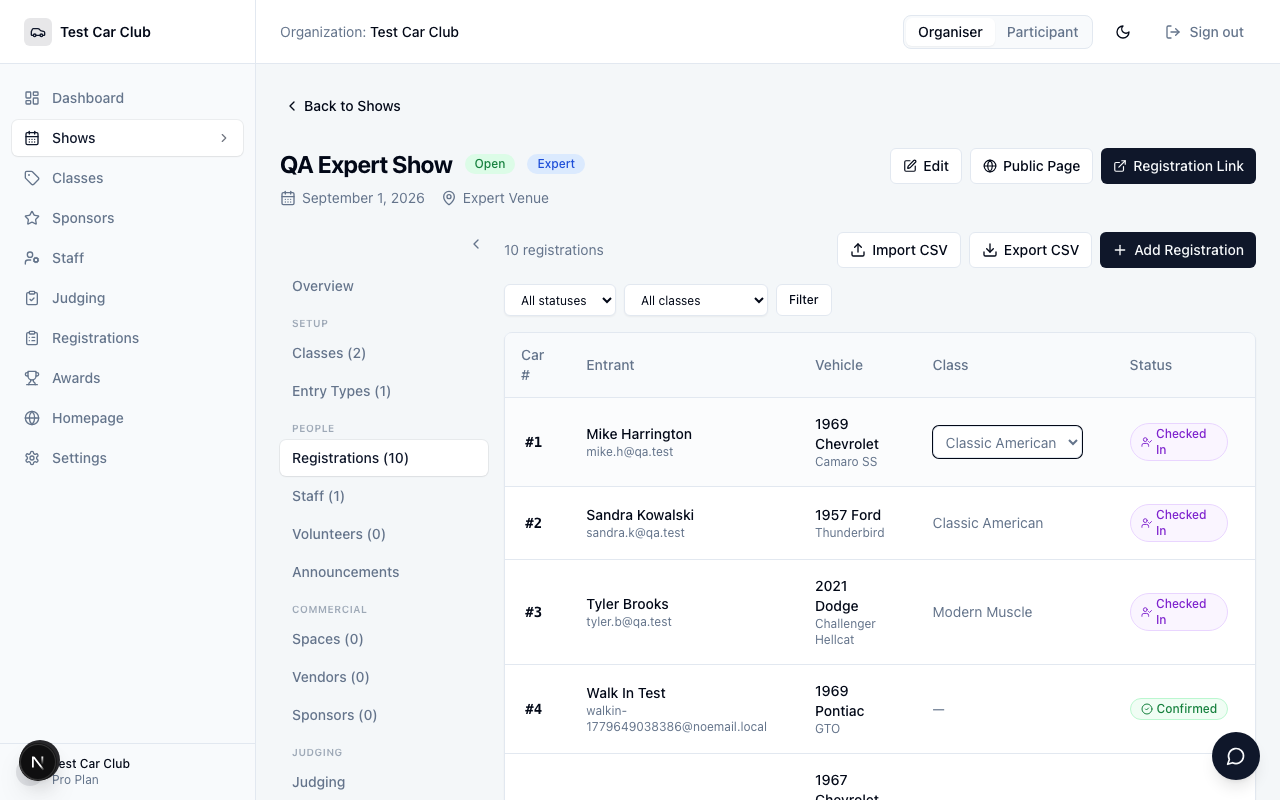
Entrants can pick their own class at registration, but walk-ins and corrections need this done manually — a car with no class assigned won't appear in any judge's queue.
On the show's Registrations tab, find the car's row and click its value in the Class column (or — No class —). Pick a class from the dropdown — it saves immediately.
Importing entries by CSV instead? Include a className column matching an existing class name and rows are sorted automatically — an unmatched name still imports the car, just without a class, alongside a warning so you can fix it afterward.
Double-check classes before judging starts
The moment a judge records the first score for a class, that class locks — for every car in it, not just the one scored. It disappears from the Class dropdown for new registrations and walk-ins, and on an already-assigned car it becomes a read-only value instead of a dropdown, so you can no longer add a car to that class or move one into or out of it. Everything else on the registration — name, email, phone, vehicle details — stays editable. Get every car into the right class before the first score goes in.
Judging on show day
Nothing is scoreable until you turn it on — every class starts Closed, and a judge can't score a car in a closed class. Open the show's Judging tab and find the Class Judging Status card. Click the Closed pill next to each class you're ready to score. It flips immediately to a green Open pill — no save button, no confirmation. Use Open all in the card header to flip every class at once, or Close all to shut judging down everywhere in one click (it asks you to confirm first, since it can stop every judge from scoring mid-show). Do this class by class right before judging starts; leaving classes closed until the last minute avoids cars getting scored before you're ready.
If any class is still closed once judging is otherwise live, an amber banner appears at the top of the Judging tab — "N of M classes are closed for judging" — with its own Open all classes button, so you can't miss it on your way to anything else on this tab. Classes you set to Not judged in Step 2 don't appear in this card, are skipped by Open all and Close all, and aren't counted in that banner.
Then in Voting & Judging settings, confirm which registration statuses are judgeable — Confirmed, Checked in, or Parked. Most shows judge only cars that have physically arrived.
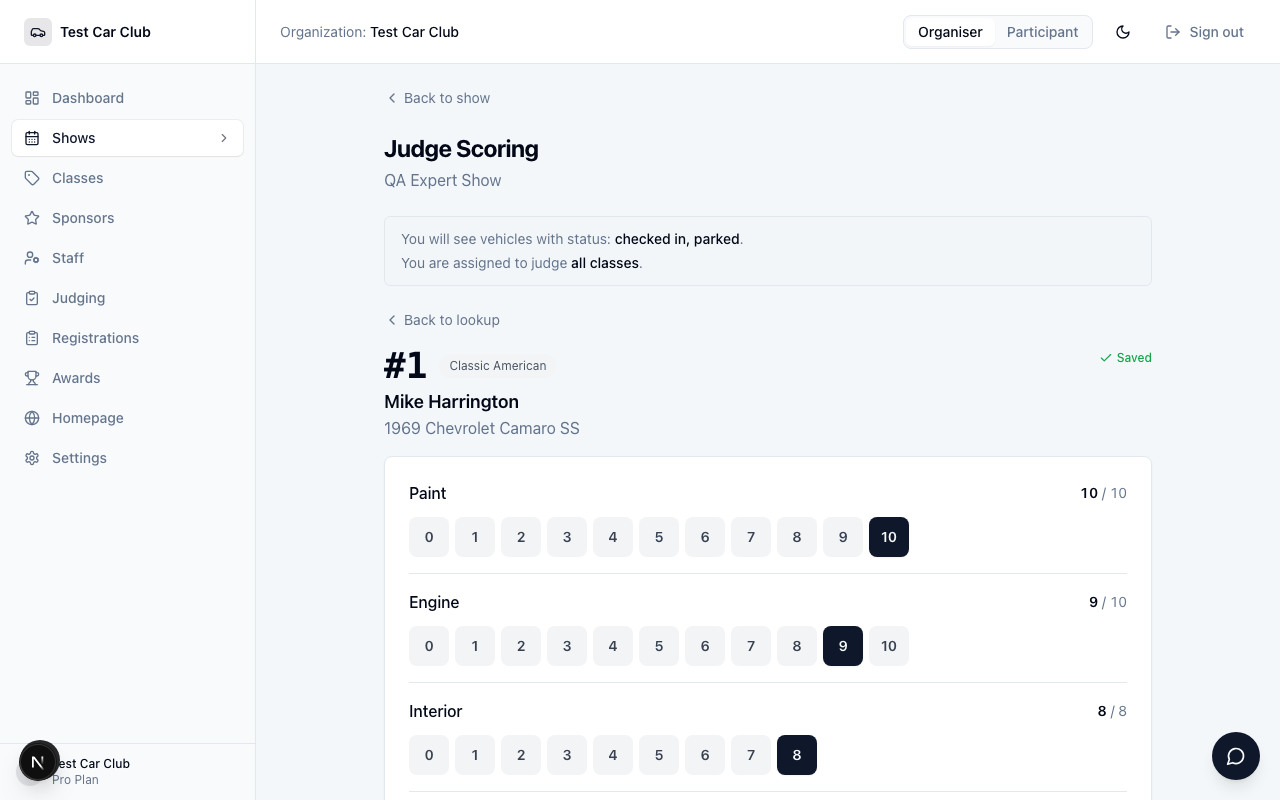
A judge opens Judging on their own phone and either types a car number or scans its QR code. Each car scores across the categories you defined for the show — Paint, Engine, Interior, Presentation, each with its own point max — and every tap saves immediately. Below the scorecard, judges see Already scored, and — if you've turned it on in Voting & Judging settings — Remaining to judge, a live queue of cars in their assigned classes still waiting to be scored.
Remaining to judge is off by default. A judge with no class restriction sees the entire show, and on shows with hundreds of entries that full list is more clutter than help — turn it on for shows where judges are scoped to a smaller field.
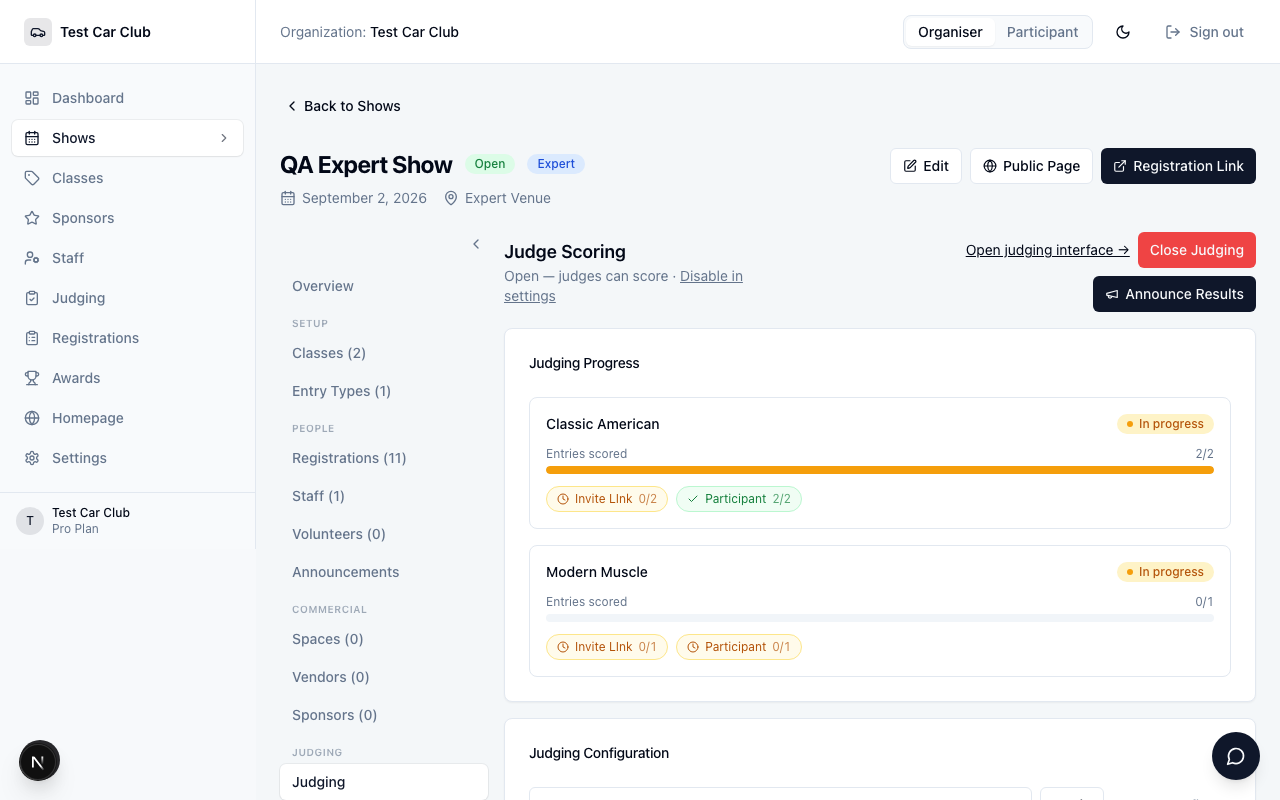
Don't rely on asking around the field to find out who's behind. On the show's Judge Results tab, the Judging Progress card sits above the per-judge score breakdowns and breaks it down by class — a Done or In progress pill, a bar for entries scored, and a chip per assigned judge with a checkmark or a clock and their own scored count. Cars with no class assigned show up in their own Unclassified bucket alongside the per-class rows. In the example below, Classic American shows 2/2 entries scored because Participant has finished both cars, even though Invite Link — also assigned to the class — is still at 0/2 and hasn't started. That's the judge to go find.
Results and awards
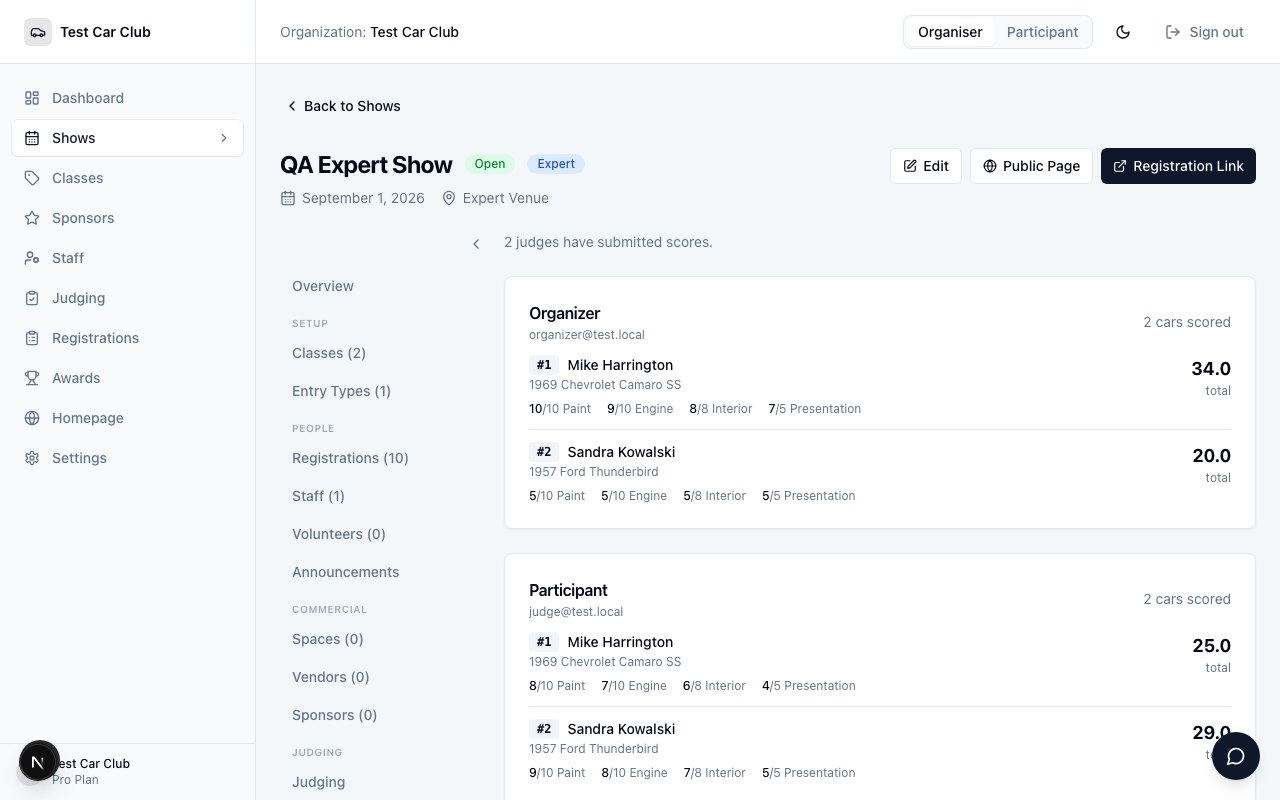
Judge Results — visible to organizers and Head Judges — is a running, per-judge breakdown of every car scored so far, category by category. Use it to spot an outlier score before you finalize anything.
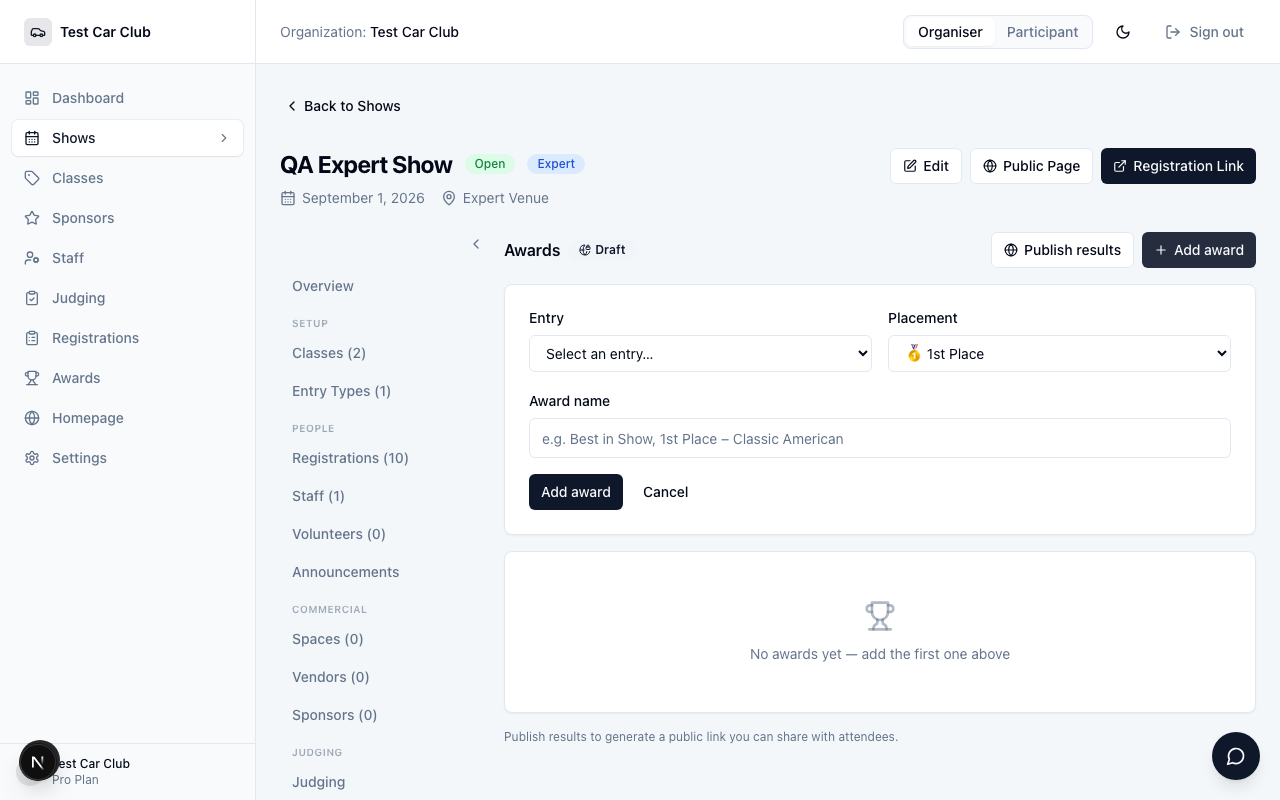
When you're ready to name winners, open the show's Awards tab. Click + Add award, choose the Entry, a Placement (🥇 1st, 🥈 2nd, …), the Class the award belongs to (leave it blank for an overall award like Best in Show), and an Award name like "Best in Show" or "1st Place — Classic American". Repeat for every trophy. Set the Class correctly on every class-level award — it's what groups the award properly in the awards table, on the public results page, and in the MC export below.
Awards you add aren't visible to entrants until you click Publish results — add every award first, review the list, then publish once when you're ready to announce. Publishing generates a public results link you can share with entrants and spectators.
Before the ceremony, click Export for MC on the Awards tab for a print-friendly winner list — grouped by class, with special awards like Best in Show listed last. Print it or save it as a PDF for whoever's reading out the results.
You're ready when you have
- Classes built in your library and added to the show
- At least one judge assigned, with class scoping set where needed
- Every registered car assigned to a class
- Each class flipped to Judging: Open on show day
- Awards added and results published