Find the check-in screen
Sign in on your phone at your organiser's Car Show Expert address, open the show, and tap Check-In (on the Registrations tab, or the link your organiser sent you directly). The check-in screen only opens once the show's status is set to Live — if you land back on the show's registrations list instead, the show hasn't been switched to Live yet. Ask the organiser to flip it before gates open.
Everything on this screen is built for a phone in one hand at the gate — big tap targets, no sideways scrolling, no zooming in.
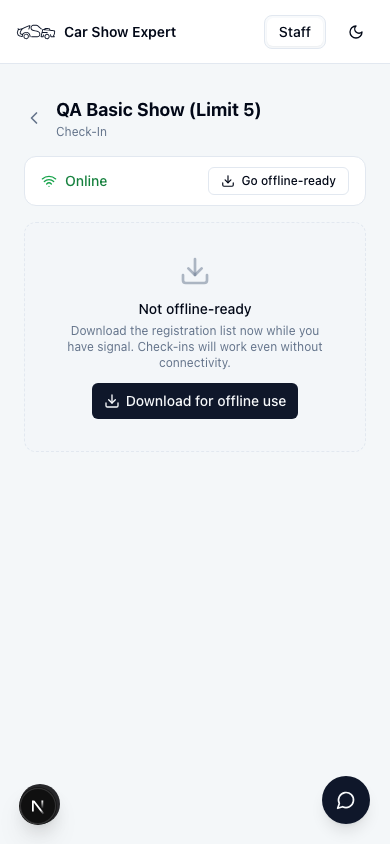
Before gates open: go offline-ready
Do this the moment you arrive at the venue, while you still have signal. Tap Download for offline use (it reads Go offline-ready once you've done it before). This pulls the full entry list — every name, car number, vehicle, class, and payment status — onto your phone.
From that point on, checking cars in works whether or not your phone has a signal. Fields, fairgrounds, and industrial estates are exactly where cell coverage disappears — do this step before you need it, not after the line has already backed up.
Check a car in
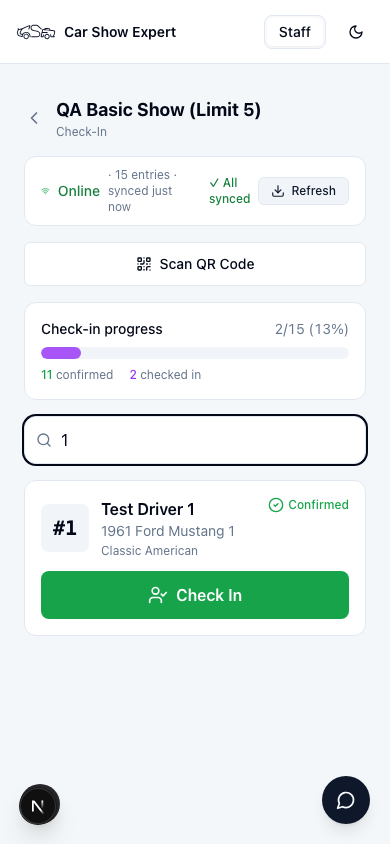
Type a car number, entrant name, make, or model into the search box — it's auto-focused, so the keyboard is already up when the screen loads. Matches appear instantly as you type; you don't need to spell anything exactly or match case.
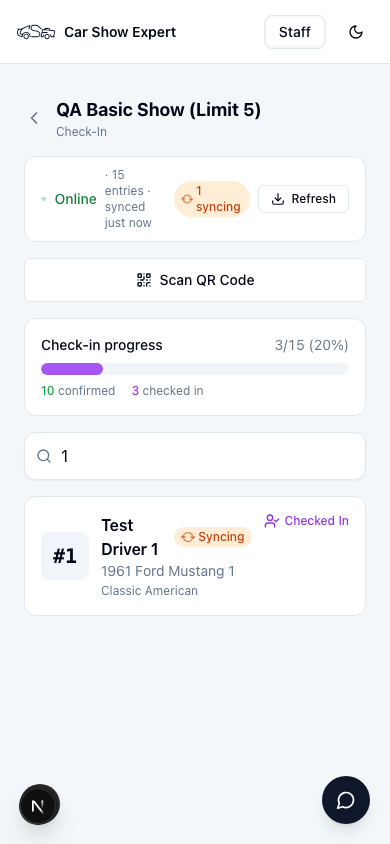
Tap the green Check In button on the entrant's card. The status updates immediately to Checked In, and the check-in progress bar at the top of the screen updates with it. Only entries with status Confirmed show a Check In button — a car that's still Pending or Waitlisted needs the organiser to confirm it first.
QR code scanning
On an Expert show, a Scan QR Code button sits above the search box. Tap it, point the camera at the code printed on the entrant's dash card, and the matching entry checks in automatically — no typing needed. If the camera can't be used (permission denied, no camera access, or the browser doesn't support it), fall back to search — it works exactly the same and needs no setup.
Basic shows don't include QR code scanning — search by name or car number instead. It works well for smaller shows; just make sure every gate volunteer has the check-in screen open on their own phone before the first car arrives.
Handling a duplicate check-in
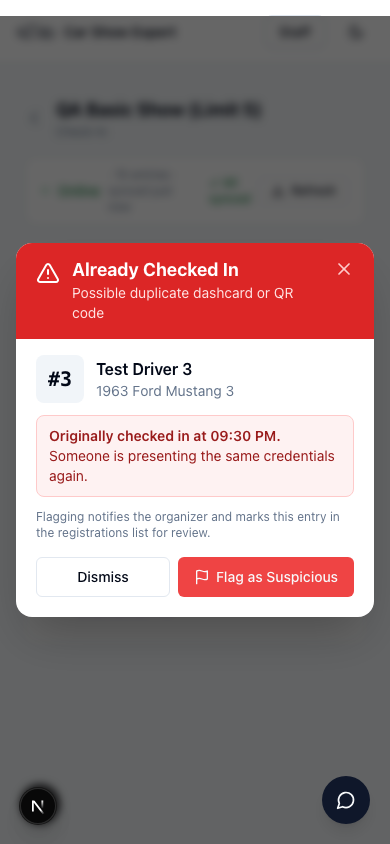
If you try to check in a car that's already been checked in — by you, by another gate lane, or by a QR scan — a full-screen red alert stops you before anything changes. It shows exactly when the car was originally checked in, so you know immediately whether this is a genuine duplicate (a copied dash card) or just someone re-scanning the same car by mistake.
Tap Flag as Suspicious if something looks wrong — it marks the entry for the organiser to review later, with a red Flagged badge on their registrations list. Tap Dismiss if it's a harmless double-tap and nothing needs to change.
If you lose signal
Nothing changes in how you work. Every check-in you tap is saved to your phone immediately and queued to sync — the status bar at the top switches from Online to Offline mode, and a badge shows how many check-ins are waiting to sync. Keep checking cars in exactly as before.
The moment your phone reconnects — even briefly — the queue flushes automatically and every check-in lands on the server with its original timestamp preserved. If you're running multiple gate lanes on multiple phones, each device syncs independently against the same show, so a car checked in on one phone shows as already checked in on the others as soon as both have synced.
Before the first car arrives
- Signed in on your own phone with Registration Access on this show
- Show status is Live and the check-in screen loads
- Tapped "Download for offline use" while you still had signal
- Know where the Scan QR Code button is (Expert shows) or that search is your only option (Basic shows)
- Know what "Flag as Suspicious" does if a duplicate check-in pops up