Find your assignment
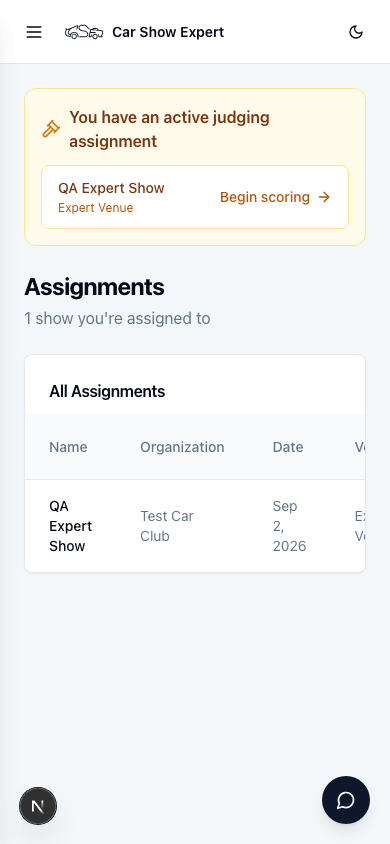
Sign in on your phone. If Head Judge is your only role in Car Show Expert (you don't organise shows yourself), you land on your Assignments page — every show you've been assigned to, with an amber banner and a Begin scoring shortcut for whichever show has judging open right now.
Tap the show's name to open its full page — that's where the judging floor controls in the rest of this guide live, on the show's Judging tab.
Open classes for judging
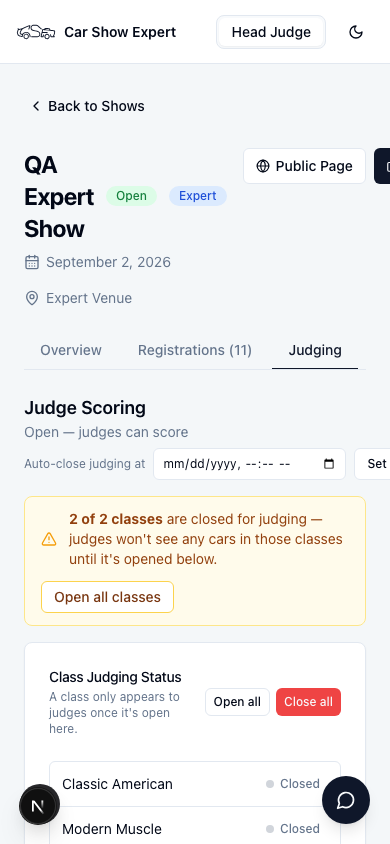
Every class starts Closed — a judge can't score a car in a closed class, even if it's checked in and sitting right in front of them. Open the show's Judging tab on your phone and look for the Class Judging Status card. If any classes are still closed once judging is otherwise underway, an amber banner sits above it with its own Open all classes button, so you can't miss it.
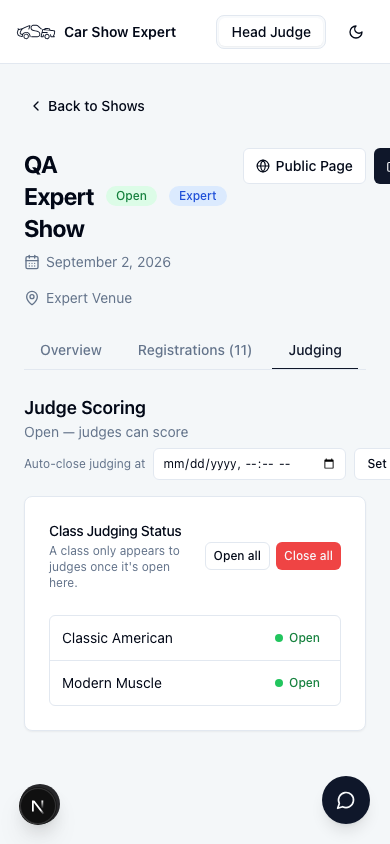
Tap the Closed pill next to a class to flip it straight to a green Open pill — no save button, no confirmation. Use Open all in the card header to flip every class at once, or Close all to shut judging down everywhere in one tap (it asks you to confirm first, since it stops every judge mid-show). Do this class by class right before judging actually starts — leaving classes closed until the last minute stops cars getting scored before you're ready.
What you can and can't touch here
Opening and closing classes, the whole-show judging toggle, and the Auto-close judging at cutoff time are all yours to run on show day without tracking down an organiser. Scoring categories, class definitions, and the show's other settings stay organiser-only — getting those wrong mid-show would break comparability between scores already entered.
Watch judging progress live
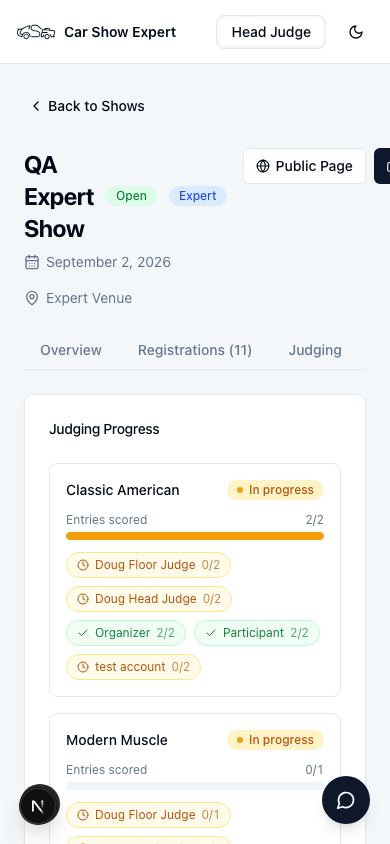
Open the show's Judge Results tab. The Judging Progress card breaks scoring down class by class — a Done or In progress pill, a progress bar for entries scored, and one chip per assigned judge with a checkmark or a clock and their own scored count. Cars with no class assigned show up in their own Unclassified bucket.
Don't rely on walking the field and asking around to find out who's behind — this card tells you directly, judge by judge, so you know exactly who to go find.
Below the progress card, the per-judge score breakdown shows every car scored so far, category by category, across all judges — useful for catching an outlier score before anything is finalized. A regular judge never sees this view; only Head Judges and organisers can.
Score cars yourself
As Head Judge you also score cars directly, the same way every other judge does — enter a car number or scan its QR code, tap through each category, and save. See the Judge Guide for the full scoring walkthrough; the screen is identical whichever role opens it.
Closing out judging
Once every class shows Done on the Judging Progress card, you're finished — hand off to the organiser to publish awards from the Awards tab (that step is organiser-only). If you set an Auto-close judging at time earlier, judging locks itself at that moment automatically; judges see a countdown warning in their own scoring screen during the last 30 minutes. Otherwise, use Close all on the Class Judging Status card to lock scoring the moment you're satisfied every car has been seen.
Remember that a class locks for reclassing the instant its first score is recorded — double-check every car's class assignment before judging opens, not after. See How to set up judging for the full class-setup walkthrough.
On show day, you should
- Sign in and find your show under Assignments (or open it directly)
- Open every class you're ready to judge on the Class Judging Status card
- Check the Judging Progress card on Judge Results to see who's behind
- Score your own assigned cars the same way every judge does
- Close judging (or let the auto-close cutoff do it) once every class is Done