Sign in and find the show
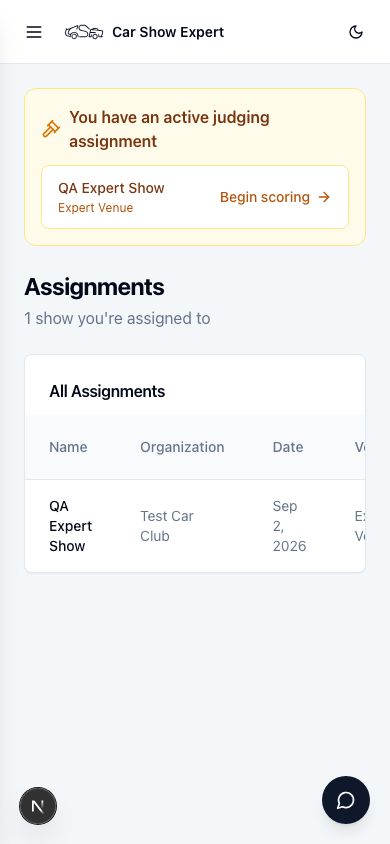
Sign in on your phone with the account your organiser assigned. If judging is the only thing you do in Car Show Expert, you land on your Assignments page. When judging is open, an amber banner shows the show and a Begin scoring shortcut straight into the scoring screen — tap it and you're in.
Look up a car
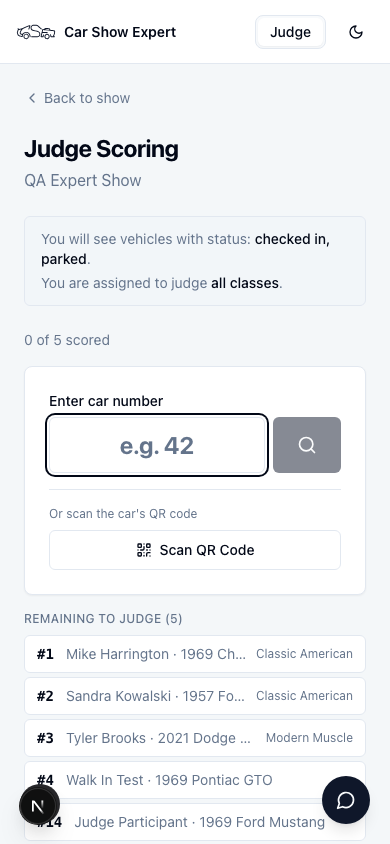
Type the car's number into the box and hit search, or tap Scan QR Code and point your camera at the code on its dash card. The banner above the search box tells you which registration statuses you'll see (usually checked in and parked — cars that have actually arrived) and whether you're scoring all classes or a specific set your organiser assigned you.
If your organiser has turned it on, a Remaining to judge list sits below the search box — every car in your assigned classes that isn't fully scored yet, in car-number order. Tap any row to jump straight into scoring it. This list is off by default on shows with hundreds of entries, since it can be more clutter than help when you're not scoped to a smaller field.
If a car's class hasn't been opened for judging yet, you'll get a message telling you so instead of the scorecard — that's the Head Judge's call to make, not yours. Try again once judging opens for that class.
Score every category
Each car scores across the categories your organiser defined for the show — typically things like Paint, Engine, Interior, and Presentation, each with its own point maximum. Tap a number button for each category; a category with a higher maximum shows a slider plus quick-jump buttons instead of a full row of numbers.
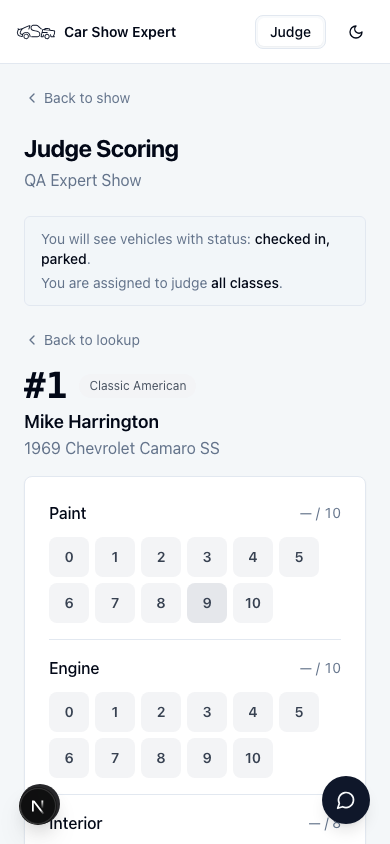
The running total at the bottom updates as you go. Add anything worth remembering in the optional Notes field — condition issues, standout details, whatever helps later. Save & Next only becomes tappable once every category has a score; there's no way to submit a half-scored car by accident.
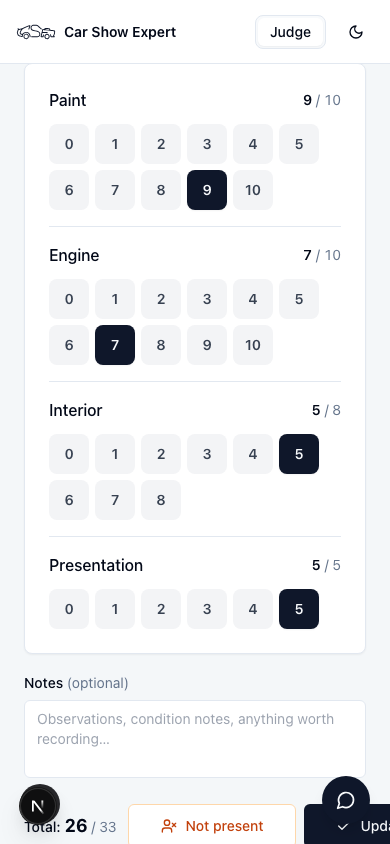
If a car isn't actually at its spot when you come to judge it, tap Not present instead of guessing at scores. It marks the car DNP (Did Not Present) rather than scoring it, and moves it out of your remaining queue with a note for the Head Judge.
If you lose signal
Keep scoring. Every score you enter is saved to your phone the instant you tap it, whether or not you have a connection. When you save a car and you're offline, the status bar shows how many scores are waiting to sync — they upload automatically the moment your phone reconnects, with nothing lost and nothing to redo. You can also tap Sync now once you're back online instead of waiting.
If your organiser set a scheduled cutoff time, you'll see a countdown warning once you're within 30 minutes of it — finish up and save anything in progress before it hits. Once judging is closed (by the cutoff or by the Head Judge), the scoring screen locks and shows an explanation instead of letting you submit.
What you can't see (on purpose)
As a Judge, you only ever see your own scores — never another judge's numbers or the running standings. That's deliberate: seeing live rankings mid-competition would bias your remaining scores toward or against whoever's currently leading. The Head Judge and the organiser see the full cross-judge picture; you don't need it to do your job well.
On show day, you should
- Sign in on your phone and find your show under Assignments
- Look up each car by number or QR scan
- Score every category before Save & Next lights up
- Use "Not present" instead of guessing at a missing car
- Keep scoring through a lost connection — it syncs automatically