My Entries
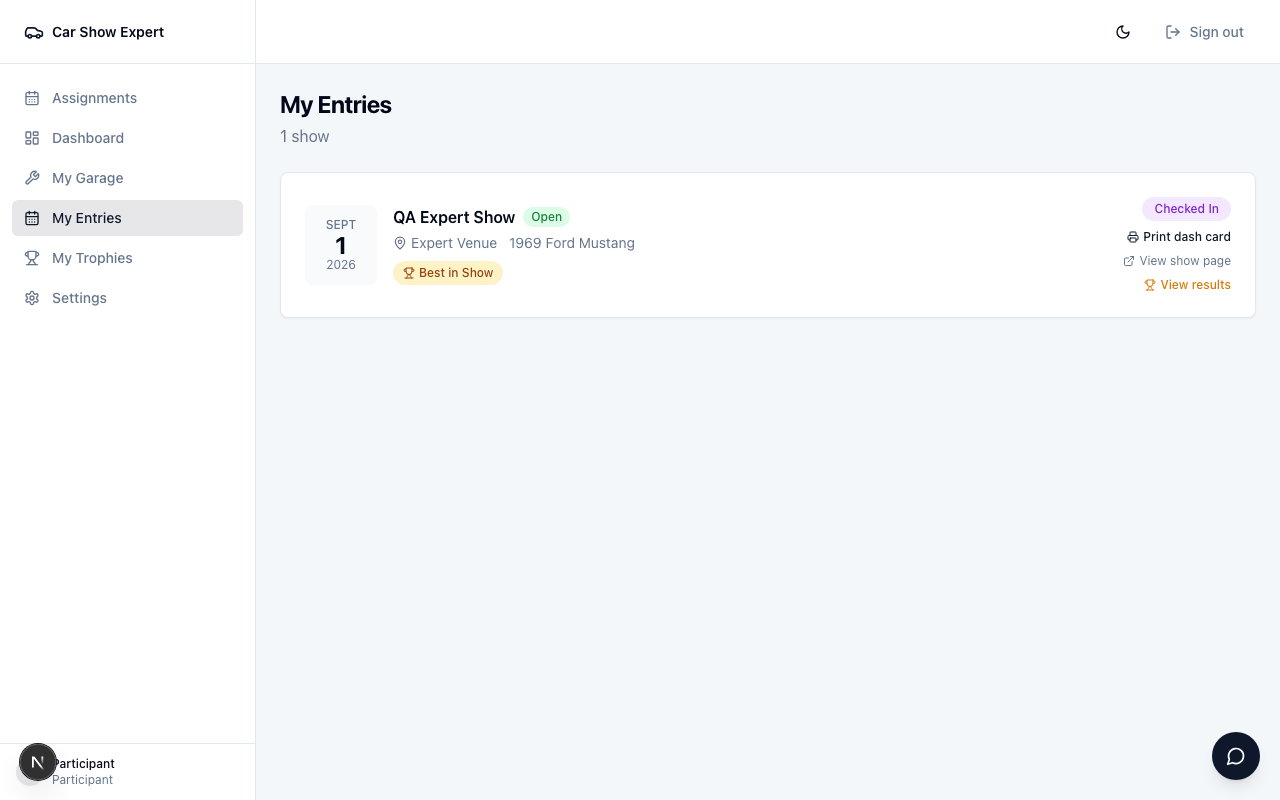
The My Entries page lists every show the participant has registered for, most recent first. Each card shows the show name, date, venue, the vehicle and class entered, and their current registration status — Pending, Confirmed, Checked In, and so on.
Once an organizer publishes results, a View results link appears on the relevant card, and any awards won are displayed as amber trophy badges directly on the card — no need to dig through the public results page to find out how you did.
Participants can also follow a View show page link to the public show page — useful for checking schedules, venue details, and sponsor information.
Dash cards
Registering needs no account, but viewing and printing the dash card does. When you confirm an entry, its email has a button. A new person sees Set your password to view your dash card: they choose a password, their account is created with the email they registered with, and they land on their card with a Print dash card button. Someone who already has an account sees Sign in to view your dash card.
The link lasts 30 days. If it is lost or expired, the entrant uses Find my registration on your show page and presses Email me my dash card link. Each entry in My Entries also has a Print dash card link. You can still print, reprint and bulk-print every card yourself, including for people you added by hand or imported. If an organiser hands cards out at check-in instead, the email has no dash card button and a card page says Dash cards are handed out at check-in. The QR code on the card opens the car's public page, which needs no login, so scanning at the show never needs an account. Cards for entries made before this change keep their original link and still open without signing in.
My Garage
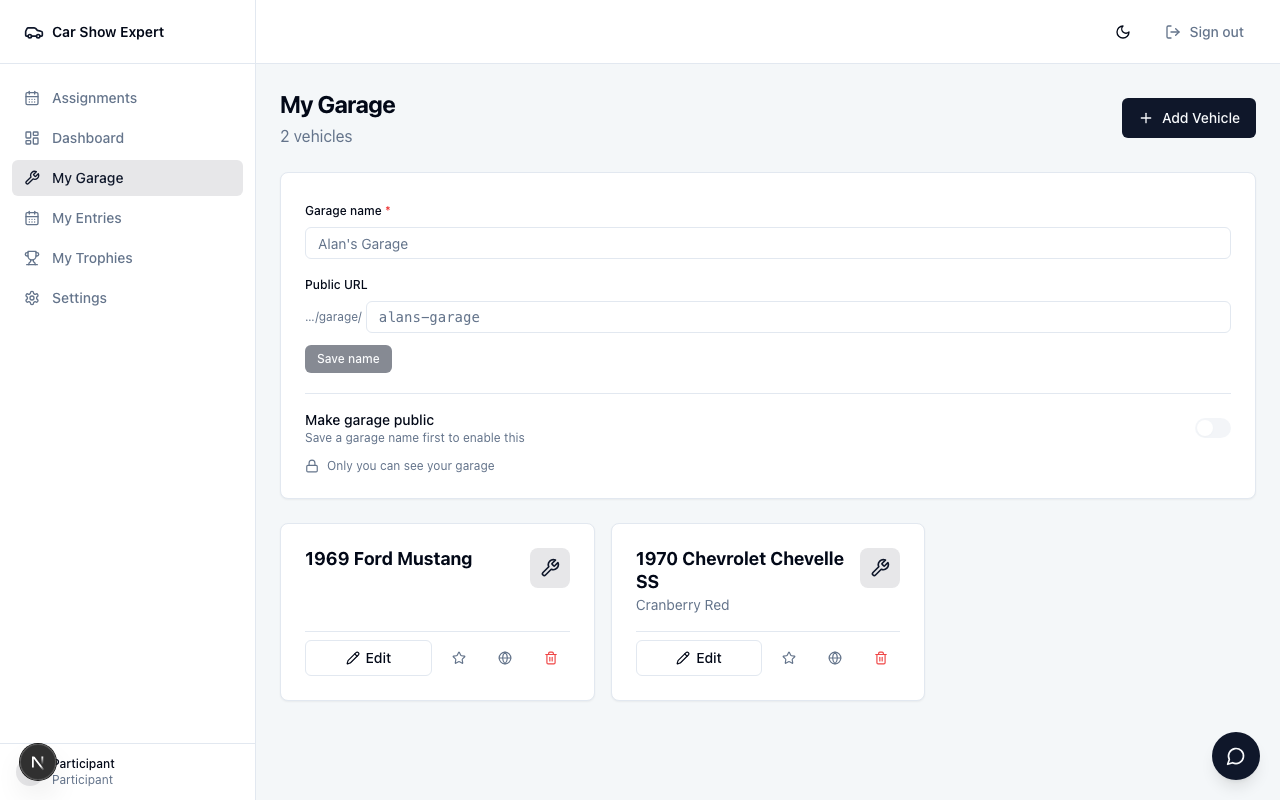
My Garage is a personal vehicle library. A participant adds a vehicle once — year, make, model, colour, state, license plate, build description, notes, and a photo — and, when they register for a show while signed in, a Your Garage picker pre-fills year, make, model, trim and description. Photos and the build story travel with the entry. No retyping the same information for every show.
Adding a vehicle
- 1
Go to My Garage and click Add Vehicle.
- 2
If you've registered for shows before, the page shows import buttons for each vehicle already on record. Click one to pre-fill the form instantly.
- 3
Fill in or adjust the details — year, make, model, colour, state, license plate, description, and private notes.
- 4
Save the vehicle. You can upload a photo from the edit screen. Cover or blur the license plate first: photos can be public, and a plate can be used to look up your name and address.
The import feature is particularly useful for participants who entered shows before creating an account — Car Show Expert finds vehicles from past registrations made with the same email address and offers them as one-click imports.
Selling a vehicle? Check This vehicle is for sale on the edit screen and add an asking price. A green "For Sale" badge with the price shows up on the vehicle in My Garage, and — if the vehicle and garage are set to public — on the public garage page too, right next to the vehicle's year, make, and model.
Awards and results
When an organizer assigns an award to an entry and publishes results, the award appears immediately on the participant's My Entries page — no notification needed, no hunting for the results link.
The public results page (at [club].carshowexpert.com/results/[showId]) is also accessible from the My Entries card. Participants can share this link directly — useful for posting their placement on social media.
Profile
Participants can update their name, email address, and phone number from the Profile section. Keeping these up to date ensures confirmation emails and any future notifications go to the right place.
What this means for you as an organizer
Participants don't need an account to register for a show — the public registration form works without one. They do need a free account to view and print their own dash card, and an account unlocks the portal features above, which means:
- ✓Participants see their registration status without emailing you to ask.
- ✓Award notifications go out automatically — no manual chasing.
- ✓Regulars pre-fill their vehicle details on their next registration, reducing entry errors.
- ✓Participants who import vehicles from past registrations help you confirm your records are consistent.
A simple way to encourage sign-ups: include a line in your confirmation email — "Create a free account at carshowexpert.com to track your registration status and see results when they're published."